Nothing ruins a workday quite like opening your inbox to a blank screen and watching error messages spin endlessly. If you tried checking your email recently and found yourself locked out, you are far from alone. A massive, widespread technical disruption hit Microsoft 365, knocking out Outlook, Teams, Copilot, and Exchange Online for tens of thousands of users.
When critical enterprise tools go dark, productivity grinds to a halt. Let's break down what actually happened during the incident, why cloud infrastructure remains fragile, and how you can protect your workflow when Microsoft goes offline.
What Caused the Microsoft 365 Outage
When reports started flooding tracking platforms like Downdetector—peaking at over 130,000 incident reports—panic naturally set in for remote workers and corporate IT departments. Users encountered connection loops, forced sign-outs, and total failures when trying to access Outlook on the web and desktop clients.
Microsoft later traced the root cause not to a malicious cyberattack or a massive surge in external internet traffic, but to an internal infrastructure failure. A component responsible for processing server health checks malfunctioned. This bug caused a large batch of backend servers to unexpectedly fail automated health diagnostics, abruptly taking them offline.
Because those servers dropped out of rotation, the remaining infrastructure had to shoulder an immense, unexpected load. That cascade effect strained connection methods like Exchange ActiveSync, Outlook's messaging APIs, and web access protocols, dragging down secondary tools like Microsoft Teams and Copilot Chat right along with it.
The Domino Effect on Teams, Copilot, and Enterprise Apps
Most people think of Outlook as a standalone email client, but it's deeply welded to the entire Microsoft 365 ecosystem. When the underlying Exchange Online infrastructure stumbles, the shockwaves instantly ripple across other apps.
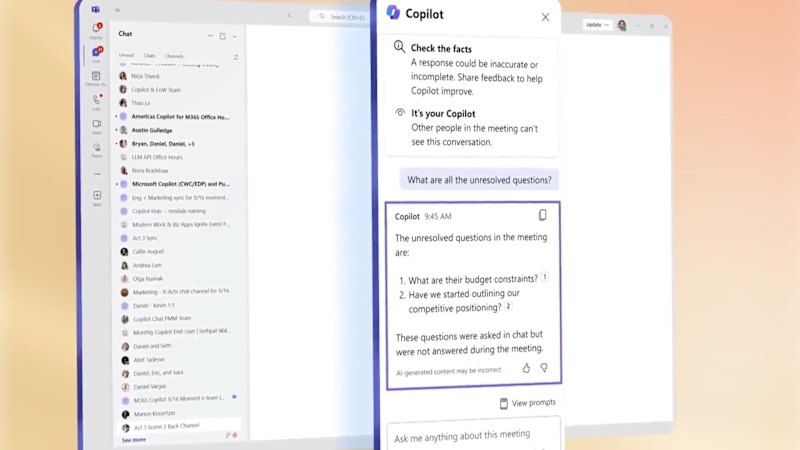
Workplace messaging on Teams slowed down or disconnected entirely in multiple regions. AI features like Copilot Chat failed to process prompts because they rely on secure, continuous authentication tokens tied to enterprise accounts. Even administrative portals like the Exchange Admin Center went dark for some IT managers, making it temporarily impossible to diagnose internal routing issues manually.
This centralization is convenient when everything works, but it creates a single point of failure that leaves millions vulnerable to sudden disruptions.
How to Check If the Problem Is You or Microsoft
Before you restart your router for the fourth time or reinstall your desktop mail app, you need to verify where the fault lies. Most users waste precious troubleshooting minutes messing with local network settings during a global cloud crash.
Instead of guessing, check authoritative tracking sources immediately. Start by looking at Microsoft's official status page at status.cloud.microsoft or monitoring real-time user complaint spikes on platforms like Downdetector. If you are an enterprise administrator with working credentials, log straight into the Microsoft 365 admin center and navigate to Health > Service health to look up active incident IDs like EX1550543 or MO1550821.
Practical Steps to Keep Working When Cloud Apps Crash
Enterprise dependency on cloud-based email means outages will always sting. However, you don't have to sit entirely idle while engineers work on a fix.
Keep a secondary personal or alternative webmail account handy for urgent, time-sensitive communications that cannot wait for cloud recovery. If you use Outlook on a desktop client, check if offline mode allows you to view previously cached messages and drafts, even if you can't send new outbound mail.
Most importantly, stop trying to force authentication resets or clear your browser cache repeatedly when a server-side health check failure occurs. Once Microsoft engineers pause faulty deployments, redistribute connection traffic, and restart affected servers, service gradually normalizes on its own. Save your energy, step away from the inbox, and let the cloud infrastructure heal itself.